






Label Printers
Professional Label Printers for Installations, Warehouses and Offices
Create clear, consistent identification with Brother label printers for electrical installations, warehouses, production areas and offices. Our selection includes handheld models for electricians and service technicians, alongside a desktop printer with Wi-Fi connectivity for shared workplaces.
A label printer makes everyday organisation easier, whether you are identifying cables and components or marking shelves, storage boxes and equipment.
- Electrical and network installations: Label cables, patch panels, control cabinets and connection points.
- Warehouses and production: Identify shelving, stock locations, tools and components.
- Offices: Organise folders, archives, cupboards and shared equipment.
Depending on the model, you can create labels directly on the printer or use a compatible smartphone, tablet or computer. Pair your machine with suitable Brother TZe tape or specialist labelling materials chosen for the surface and working conditions.
Browse our materials for label printers, or contact us on +44 2036300130 or by email for help choosing the right printer and tape.
A Guide to Professional Label Printers and Effective Labelling
A professional label printer helps you create clear, consistent identification wherever it is needed. Well-planned labelling makes stock easier to find, simplifies maintenance and connects cables, components and equipment with the information in your records.
The right printer depends on how you work. An electrician may need a handheld model for use at an installation, while a warehouse or office may benefit from a desktop machine that several employees can access.
Your choice of tape matters just as much. Standard laminated tape, flexible cable tape, heat-shrink tubing and extra-strength adhesive tape are designed for different surfaces and conditions.
What Is a Label Printer?
A label printer, also called a label maker, produces text, symbols, identification numbers and, where supported, graphics and barcodes on suitable media.
The Brother P-touch printers in this category use tape cassettes and thermal transfer printing, so they do not require separate liquid ink cartridges. Depending on the machine, you can design labels using its built-in keyboard or compatible software.
Typical applications include:
- Cable and wire identification
- Electrical panels, terminal blocks and control cabinets
- Patch panels, network equipment and communication systems
- Shelf numbers and warehouse locations
- Product, component and equipment identification
- Tools, machinery and workplace storage
- Folders, archives and office equipment
- Instructions, warnings and maintenance information
P-touch Printers and Shipping Label Printers
The term "label printer” covers several types of equipment. The Brother P-touch models shown here print on tape in fixed widths, making them useful for technical identification, shelf marking and general organisation.
They differ from printers that use rolls of larger, pre-cut labels for parcels and logistics. Although a P-touch printer can produce small address labels and identification codes, these models are not designed for standard 4 × 6 inch shipping labels.
Consider the required label size and daily print volume before choosing a machine. A printer that works well for cables and storage boxes may not suit a busy parcel dispatch operation.
Benefits of Professional Labelling
Consistent labels do more than improve the appearance of a workplace. They can help employees identify the correct item, follow an installation and locate information without relying on handwritten notes.
The main benefits include:
- Clear identification: Readable text and consistent naming.
- Better organisation: Easier navigation through stock, equipment and documents.
- Simpler maintenance: Labels that connect components with service records and diagrams.
- Printing on demand: Produce the required identification when and where you need it.
- Reusable designs: Save suitable layouts for recurring tasks.
- Flexible working: Choose handheld operation, mobile connectivity or a shared desktop setup.
Handheld Label Printers for Electricians and Installers
Electricians, network installers and service technicians often need to create labels while working at the installation. A handheld label printer with a keyboard and display allows quick changes without returning to a desk.
Common tasks include marking cables, electrical panels, terminal blocks, faceplates and control cabinets. Cable wraps and flag labels can also make individual connections easier to identify, provided the selected tape suits the cable.
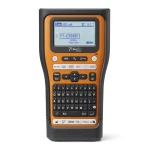
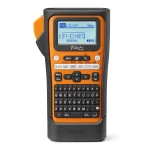
The Brother PT-E310BTVP combines direct operation with Bluetooth and USB connectivity. It supports TZe tape up to 18 mm wide and comes in a carrying case for transport between jobs.
For tasks requiring wider labels, the Brother PT-E560BTSP supports TZe tape up to 24 mm wide. Its installation-focused functions suit cable identification, patch panels and component marking, while Bluetooth provides another way to prepare labels.
Bluetooth Printing for Mobile Work
A Bluetooth label printer can connect to a compatible mobile device, allowing you to prepare labels on a larger screen and reuse layouts across similar jobs.
This can be useful when information is already stored digitally or several labels need the same structure. Compatible Brother apps can also help you combine text and symbols without entering everything through the printer’s keyboard.
Check the supported app, operating system and connection method for your chosen model. Bluetooth capability does not automatically mean that every computer, phone or application can connect in the same way.
Wi-Fi Label Printing for Shared Workplaces
A desktop printer can provide a central labelling point for a warehouse, workshop or office. Connecting it to a suitable wireless network allows compatible devices to access the same machine.
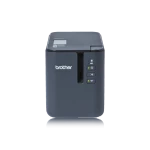
The Brother PT-P900Wc offers Wi-Fi and USB connectivity and supports TZe tape up to 36 mm wide. It is suited to computer-based label design and recurring identification tasks across a shared workplace.
Typical uses include shelf labels, stock locations, equipment numbers, archive labels and technical instructions. Network access and printer sharing depend on your software, device compatibility and IT setup.
Thermal Transfer Printing and Laminated TZe Tape
Brother P-touch printers use thermal transfer technology, transferring the printed information from a ribbon onto the label material. With laminated TZe tape, the print is protected beneath a transparent layer.
This construction helps protect the text during handling and exposure, but performance varies between tape types. A standard laminated label, flexible cable label and decorative ribbon should not be treated as interchangeable.
Choose the material according to the surface, label size, environment and expected wear, rather than selecting by colour alone.
Standard TZe Tape for Everyday Identification
Standard laminated TZe tape is suitable for many routine tasks on clean, smooth surfaces. It is commonly used for folders, shelves, storage boxes, drawers, equipment and general workplace identification.
Different widths and colour combinations allow you to adapt the label to the space available. Browse our label printer materials and check that the cassette type and width are supported by your machine.
Flexible Tape for Cables and Curved Surfaces
Brother TZe-FX flexible ID tape is designed for cable wraps, flag labels and other applications involving small curved surfaces. It is a more appropriate choice than ordinary flat-surface tape for many cable identification tasks.
For example, Brother TZe-FX231 flexible tape provides black text on a white background for clear identification.
The label length and width must suit the cable diameter and application method. Follow the tape instructions for overlap and positioning, since an unsuitable layout can allow the edges to lift.
HSe Heat-Shrink Tubing for Cable Identification
Brother HSe heat-shrink tubing forms a sleeve around the cable rather than an adhesive label. It is usually fitted before a connector or terminal is attached, then shrunk using a suitable controlled heat source.
This approach is useful when you want compact identification without projecting label ends. The tubing must fit both the cable diameter and the printer’s supported media range.
Options include Brother HSe-221E heat-shrink tubing. Check the specific cassette’s compatibility and sizing, and follow its heating instructions to avoid damaging the cable insulation.
Extra-Strength Adhesive Tape
Some surfaces need a stronger adhesive than standard tape provides. Brother TZe-S tape can be useful for selected textured plastics, metal surfaces, tools, storage containers and industrial equipment.
The Brother TZe-S231 extra-strength adhesive tape is one option for these more demanding applications.
Stronger adhesive cannot compensate for every surface problem. Oil, silicone, dust and pronounced texture can still affect adhesion, so test the material before using it throughout an installation.
Security Tape and Decorative Ribbon
Brother TZe-SE4 security tape is designed to leave evidence of removal. It can help identify interference with labelled equipment or components, but it should not be treated as a physical lock or an automatically approved security seal.
For presentation and decorative work, Brother satin ribbon provides an alternative for gift wrapping, events and packaging. Decorative materials have different properties from technical laminated tape and are not substitutes for cable or industrial labels.
Choosing the Right Tape Width
Tape width should match the information, available space and viewing distance. Narrow tape can suit small components and compact storage labels, while wider tape provides room for larger lettering, multiple lines and graphics.
Check the printer’s maximum supported width before ordering. Also remember that the printable area can be narrower than the tape itself.
A larger label is not necessarily easier to read. Clear wording, suitable text size and sensible placement are equally important.
Colour, Contrast and Readable Design
Good labels communicate the necessary information without becoming crowded. High contrast, such as black text on white or yellow tape, can make identification easier in a busy workplace.
Colour can help distinguish stock zones, cable groups or maintenance categories, but it should support written information rather than replace it. Text and symbols remain important in poor lighting and for people with reduced colour vision.
For consistent results:
- Use a clear typeface and an appropriate text size.
- Keep names and abbreviations consistent.
- Avoid unnecessary wording.
- Leave enough space around symbols and codes.
- Preview the design before printing.
- Check a physical sample before producing a full batch.
Barcodes and QR Codes
Supported Brother printers and software can produce barcodes and QR codes for identification and information access. The required code format, available print area and intended scanner should all influence the design.
A code needs sufficient size, contrast and clear space around it. Curved mounting surfaces or reflections from the tape can also affect scanning.
Always test the finished label with the device that will be used in practice. A code that scans successfully on a computer screen may behave differently after printing and application.
Software, Apps and Connection Options
Compatible Brother software and apps can help you create templates, reuse layouts and prepare repeated labels. Depending on the model and program, features may include graphics, barcodes, sequential numbering and imported data.
Choose the connection method around your working habits:
- Direct operation suits quick labels created through a built-in keyboard and display.
- Bluetooth supports mobile working with compatible devices and apps.
- USB provides a direct connection to a computer.
- Wi-Fi can support shared access through a suitable wireless network.
Check operating system and software compatibility before purchase, particularly if the printer will be used across several devices.
Cable and Network Identification
Clear labels make network maintenance and future expansion easier. They can identify both ends of a cable and connect each port or component with the corresponding documentation.
Useful labelling points include:
- Network cables and patch panels
- Wall outlets and connection ports
- Servers, switches and rack cabinets
- Power supplies and adapters
- Fibre and communication equipment
Use a consistent naming system so that the destination, location and connection reference remain understandable to anyone working on the installation.
Warehouse and Production Labelling
In a warehouse, readable location labels can reduce searching and help staff select the correct items. Shelf numbers, storage boxes, picking locations and equipment IDs should follow a logical structure and appear in consistent positions.
In production areas, labels can also support maintenance records, component identification and quality checks. Choose materials that suit exposure to moisture, cleaning products, oil, temperature changes and abrasion.
P-touch printers are useful for small and medium-sized identification labels. Where the main task is printing large quantities of wide logistics labels, a dedicated roll-label printer may be more appropriate.
Office Organisation and Product Identification
In offices, a label printer helps organise folders, archive boxes, cupboards and shared equipment. Consistent templates can make the system easier to maintain as new items are added.
For products and components, labels can carry model numbers, prices, serial numbers and internal references. Small batches can be updated as needed without ordering a large quantity of preprinted labels.
Where labels carry mandatory product or safety information, check the requirements for their content, size, placement and durability. The printer itself does not establish whether the finished labelling meets those requirements.
Preparing the Surface
Even a strong adhesive may fail on a dirty or damp surface. Good preparation helps the label make proper contact with the material beneath it.
- Remove dust, grease and other contamination using a cleaner suitable for the surface.
- Allow the area to dry completely.
- Avoid touching the adhesive side of the label.
- Position the label carefully and press it down evenly.
- Follow the tape instructions for application temperature and adhesion time.
On cables or curved items, select a suitable flexible tape or heat-shrink sleeve. For textured surfaces, test the adhesive and inspect the label again after it has been exposed to realistic working conditions.
Durability in Demanding Environments
Not every tape offers the same resistance to moisture, chemicals, sunlight, temperature and physical wear. Select the exact product according to the conditions it will face.
Outdoor suitability also depends on the surface and exposure, not simply whether the label is laminated. Avoid assuming that a tape will remain permanently attached or readable in every environment.
For identification used in maintenance, traceability or safety-related processes, test the complete application before relying on it.
Reducing Tape Waste
Tape consumption depends on label length, margins, cutting settings and how jobs are grouped. A little preparation can help avoid unnecessary waste.
- Check spelling and reference numbers before printing.
- Use saved templates for repeated work.
- Print labels in batches where practical.
- Use chain printing when supported.
- Choose a suitable tape width without sacrificing readability.
- Test unfamiliar layouts before producing a large quantity.
The cheapest cassette is not always the most economical choice. Replacing labels that detach or become unreadable can take more time than selecting the appropriate material initially.
Looking After Your Label Printer
Keep the printer clean and dry, and remove dust from the cassette compartment. Clean the printhead and feed roller only as described in the manufacturer’s instructions.
Use compatible cassettes and avoid pulling the tape while it is feeding or cutting. If the print or cut quality changes, inspect the machine according to its manual rather than using sharp tools or aggressive cleaning products.
A carrying case helps protect handheld models during transport. Software and firmware updates should also be applied when recommended for your printer.
Common Labelling Problems
The Label Will Not Stay Attached
Check surface cleanliness, application temperature and tape suitability. Curved or textured surfaces may require a different adhesive or material.
The Print Looks Faint or Uneven
Check that the cassette is installed correctly and follow the manual’s printhead cleaning instructions. A damaged cassette can also affect the result.
The Tape Feeds Unevenly
Stop printing and inspect the cassette for damage or loose tape. Refit it according to the printer’s instructions.
A Cable Label Starts to Lift
Check the cable diameter, tape type and required overlap. Flexible ID tape or correctly sized heat-shrink tubing may be more suitable.
A Barcode Will Not Scan
Check the code format, size, contrast and clear space around it. Test again after mounting the label.
The Printer Will Not Connect
Confirm the selected connection method, app compatibility, device permissions and network settings.
Too Much Tape Is Being Used
Review margins and cutting options, and check whether batch or chain printing is supported.
Choosing a Label Printer for Your Work
Start with the tasks the printer will handle most often. Consider whether labels will be created at a desk, beside an installation or in several locations throughout the day.
Useful questions include:
- Do you need a built-in keyboard and display?
- Will you print from a phone, computer or shared network?
- What tape widths and specialist materials are required?
- Will you create cable wraps, flag labels or heat-shrink identification?
- Do your designs include barcodes, graphics or sequential numbers?
- How many labels will you produce each day?
- Will several employees share the printer?
- What conditions will the labels face after application?
These practical requirements provide a better starting point than choosing on price or print speed alone.
Frequently Asked Questions About Label Printers
Do Brother P-touch Printers Need Ink Cartridges?
No. These models use thermal transfer tape cassettes, rather than separate liquid ink cartridges.
Can I Print Labels from My Phone?
The Bluetooth models in this range support mobile printing through compatible Brother apps. Check the printer and app requirements for your device.
Can Several People Use the Same Printer?
A Wi-Fi model such as the PT-P900Wc can support shared use through a suitable network setup. Access depends on compatible software and your organisation’s IT configuration.
Can These Printers Produce Shipping Labels?
They can create small address and identification labels, but they are not intended for standard 4 × 6 inch parcel labels or high-volume printing of wide shipping labels.
Which Material Should I Choose for Cables?
TZe-FX flexible ID tape is designed for appropriate cable wrap and flag applications. HSe heat-shrink tubing is another option when the sleeve can be fitted over the cable and correctly shrunk into place.
Can TZe Labels Be Used Outdoors?
Some variants are suitable for outdoor applications, but resistance and adhesion depend on the exact tape, surface and exposure. Check the product information before choosing.
Can the Label Be Removed Later?
Removal depends on the adhesive and surface. Strongly bonded labels can leave residue or damage delicate finishes, so test first if clean removal is important.
Will Every Brother Cassette Fit My Printer?
No. Cassette type and supported width vary between models. Check the specific product code against your printer before ordering.
Materials and Advice for Your Labelling Tasks
At SignProduction, you can find Brother label printer materials, including standard TZe tape, flexible cable tape, extra-strength adhesive tape, heat-shrink tubing, security tape and decorative satin ribbon.
Our customer service team can help you compare printer models, tape widths, connectivity and material suitability for installations, warehouses, offices and production areas.
Contact us on +44 2036300130 or by email for help choosing a label printer and compatible supplies for your work.